How to Use Dependency Finder
for Virt-A-Mate
Can't find missing packages on VaM Hub? The Dependency Finder indexes .var packages from sources worldwide and gives you download links instantly.
1
Understanding the Error Log
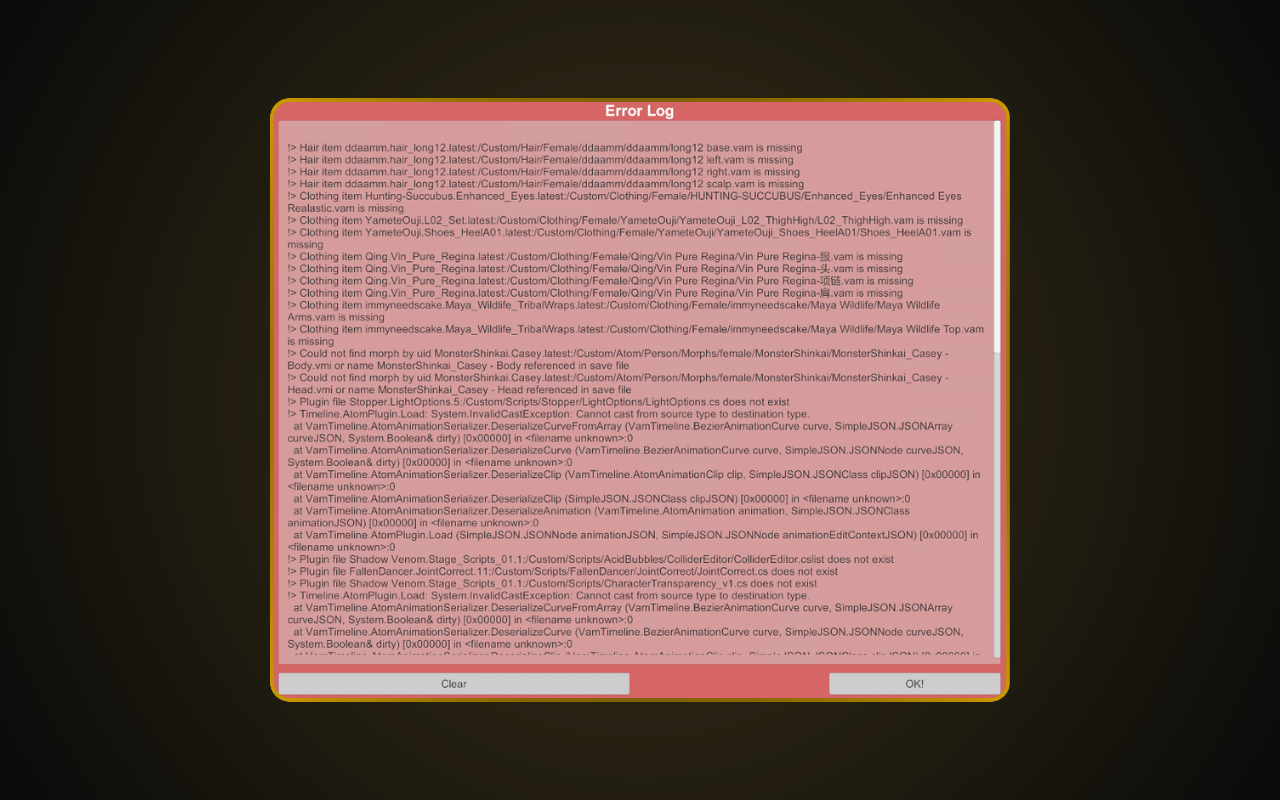
VaM shows errors at two points:
On launch — scans meta.json in all .var files and reports missing dependencies across your entire library.
After loading a scene — scans the scene's .json files and reports only what that scene needs. Don't chase every error from the launch scan — it leads to endless dependency chains. Focus on errors after loading a scene.
On launch — scans meta.json in all .var files and reports missing dependencies across your entire library.
After loading a scene — scans the scene's .json files and reports only what that scene needs. Don't chase every error from the launch scan — it leads to endless dependency chains. Focus on errors after loading a scene.
2
What is Dependency Finder?
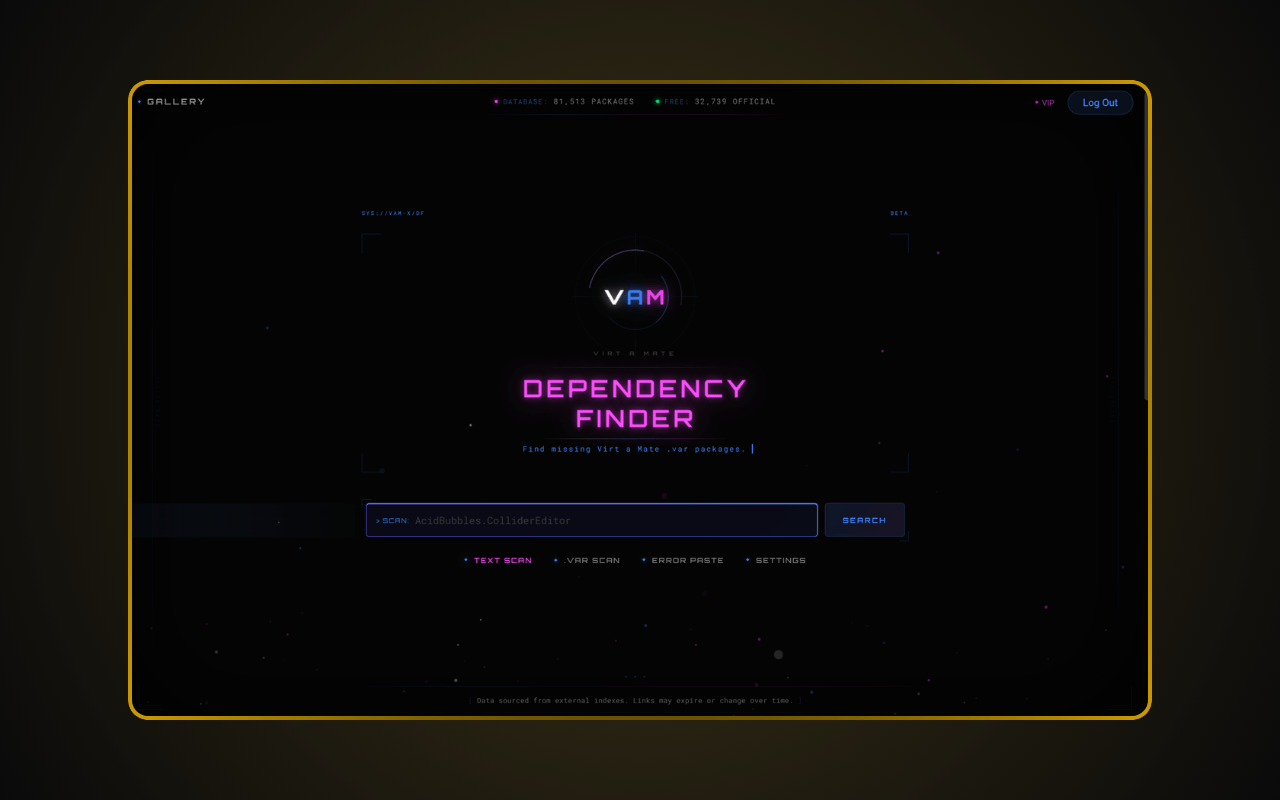
The VaM-X Dependency Finder is a search tool for finding missing .var packages in Virt-A-Mate. It indexes packages from sources worldwide and provides direct download links.
3
Search for Missing Packages
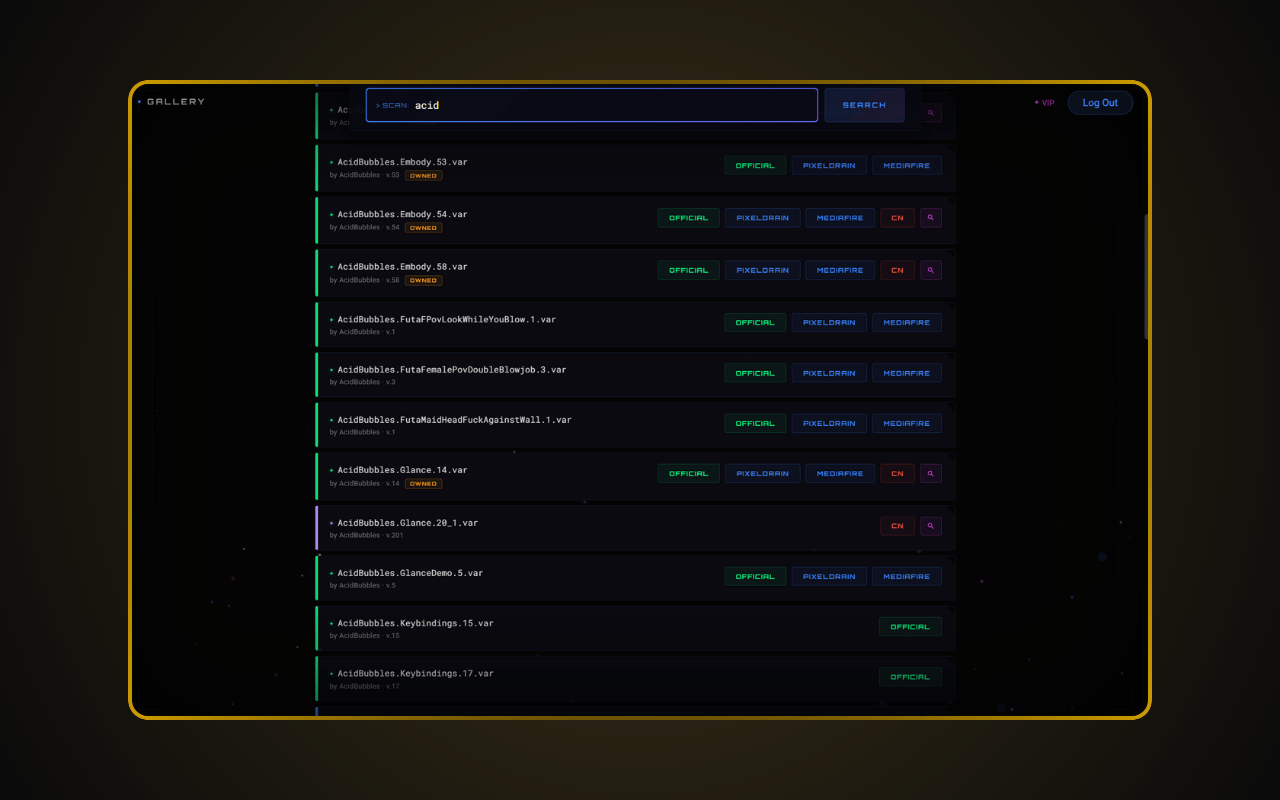
The tool offers three scan modes:
Text Scan — paste any var name like "AcidBubbles.ColliderEditor.38" and get instant results.
.VAR Scan — drag and drop your .var files to detect all dependencies automatically.
Error Paste — copy error messages from Virt-A-Mate's error log and paste them directly to resolve multiple missing packages at once.
Text Scan — paste any var name like "AcidBubbles.ColliderEditor.38" and get instant results.
.VAR Scan — drag and drop your .var files to detect all dependencies automatically.
Error Paste — copy error messages from Virt-A-Mate's error log and paste them directly to resolve multiple missing packages at once.
4
Recommended Workflow
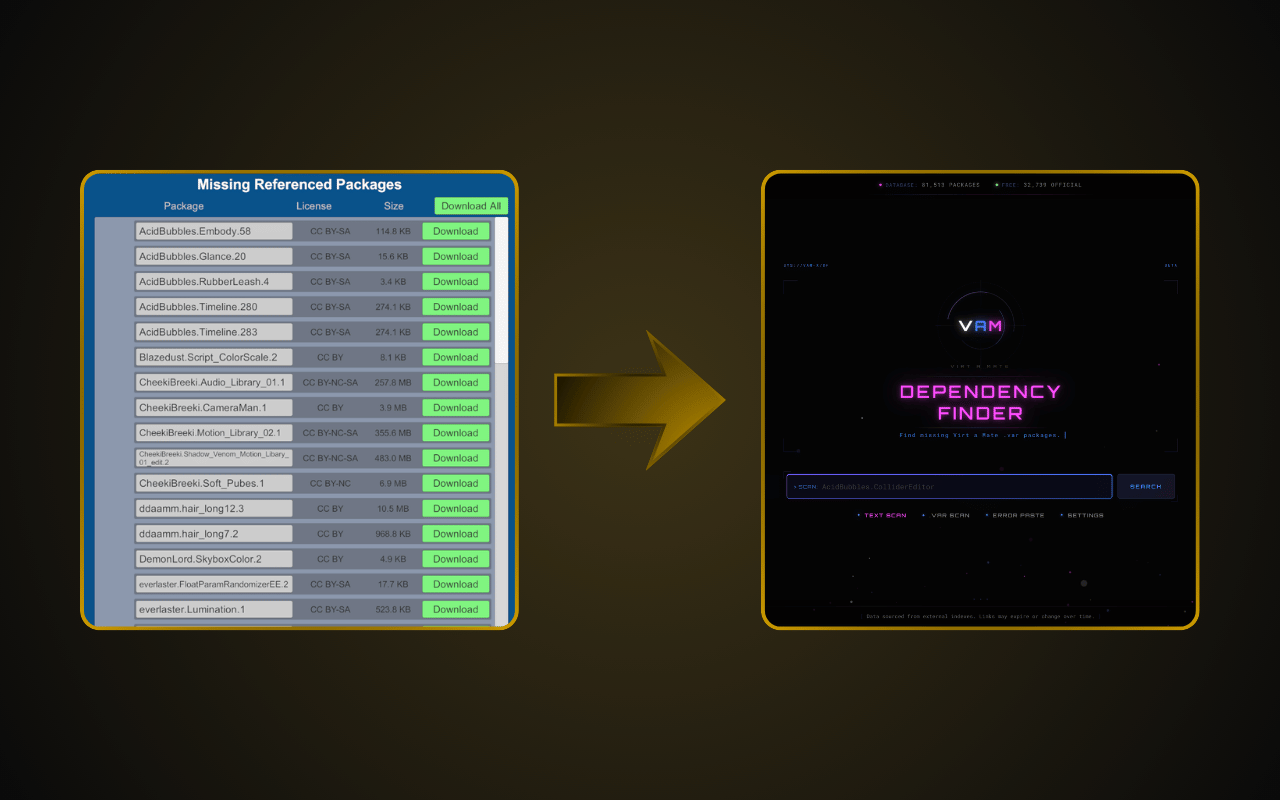
For the best results, start by scanning VaM Hub first — it downloads missing packages in one click. Then use the Dependency Finder to search for anything VaM Hub couldn’t find. Fast flow: Scan Hub → Download All → Open scene → Copy errors → Paste in Dependency Finder (Error Paste mode).
5
Download & Install
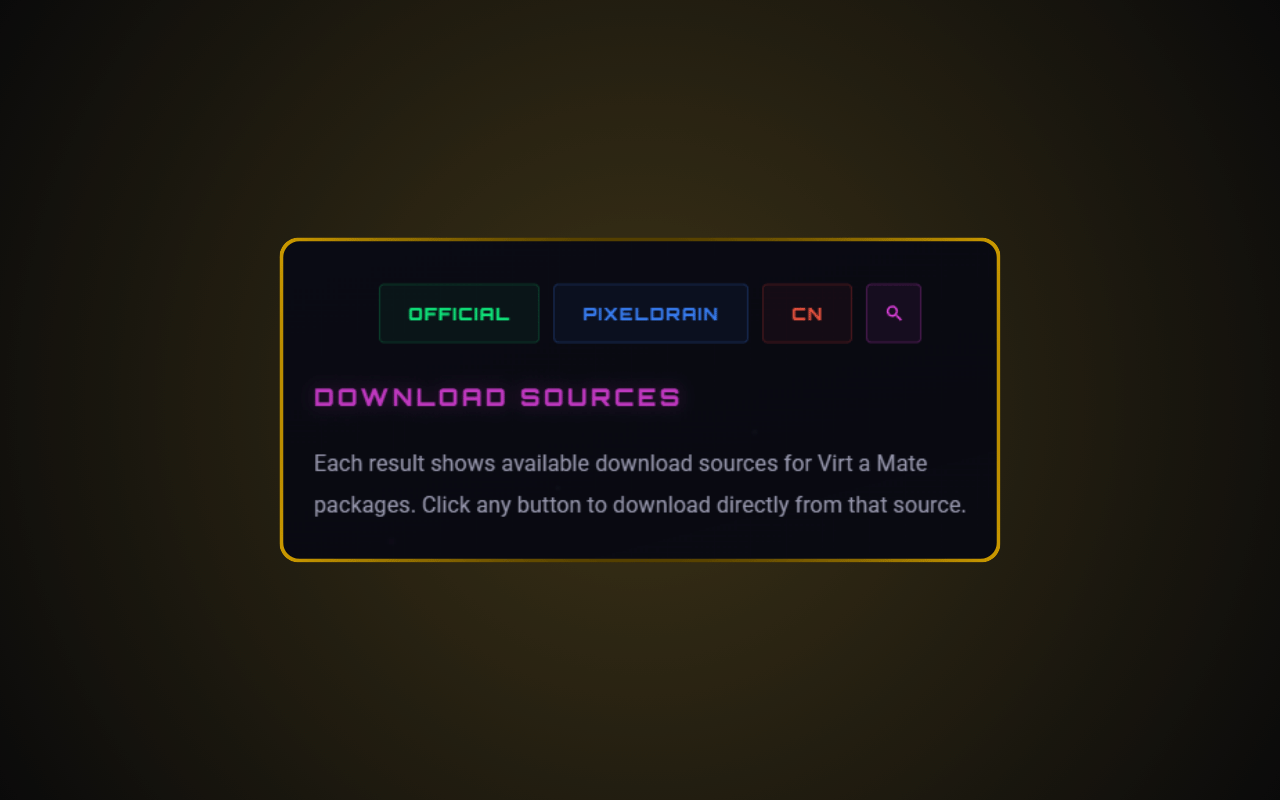
Each result shows download links from multiple sources. Download the missing .var files, place them in your AddonPackages folder, and reload the scene.