How to Download & Install Virt-A-Mate
Step-by-step guide to download and install Virt-A-Mate. For more details, visit the official guide by Meshed VR.
1
Download VaM Updater
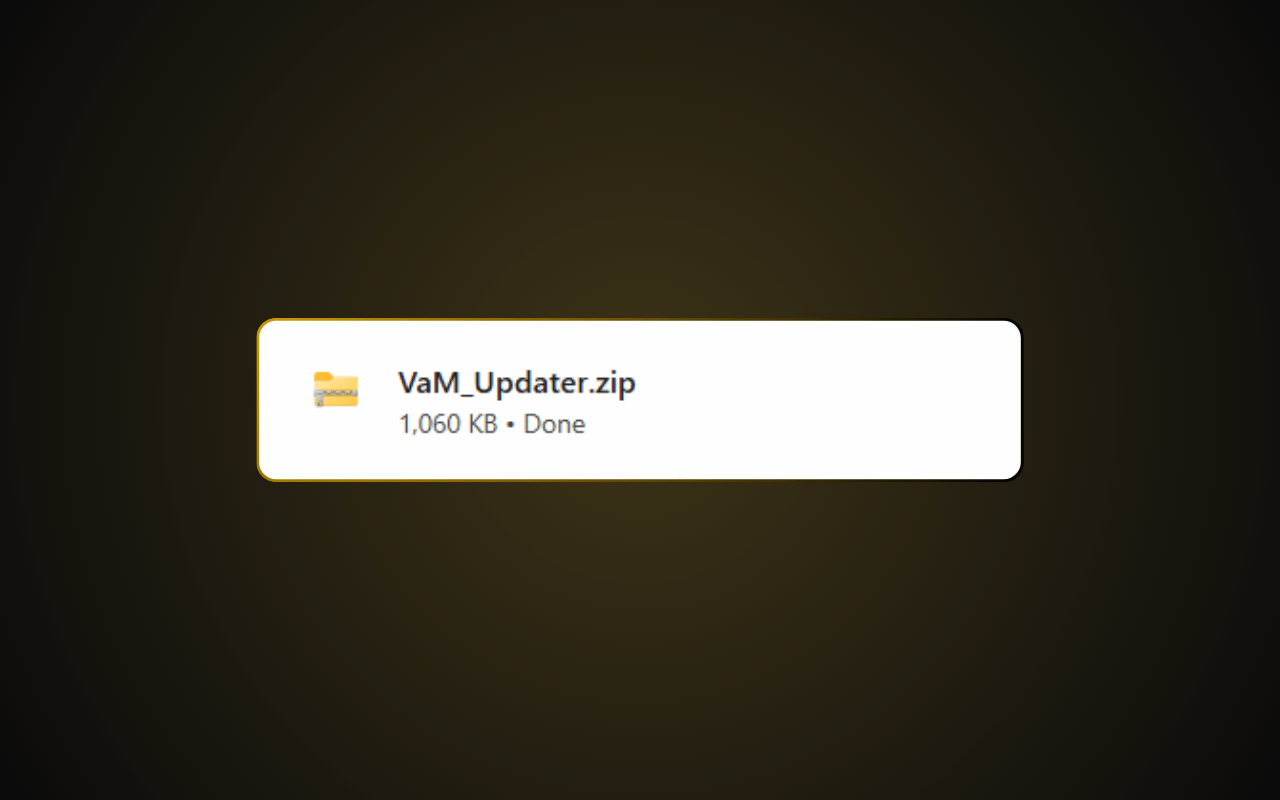
Click the button below to download VaM_Updater.zip directly from the official CDN. No account needed.
2
Extract the ZIP
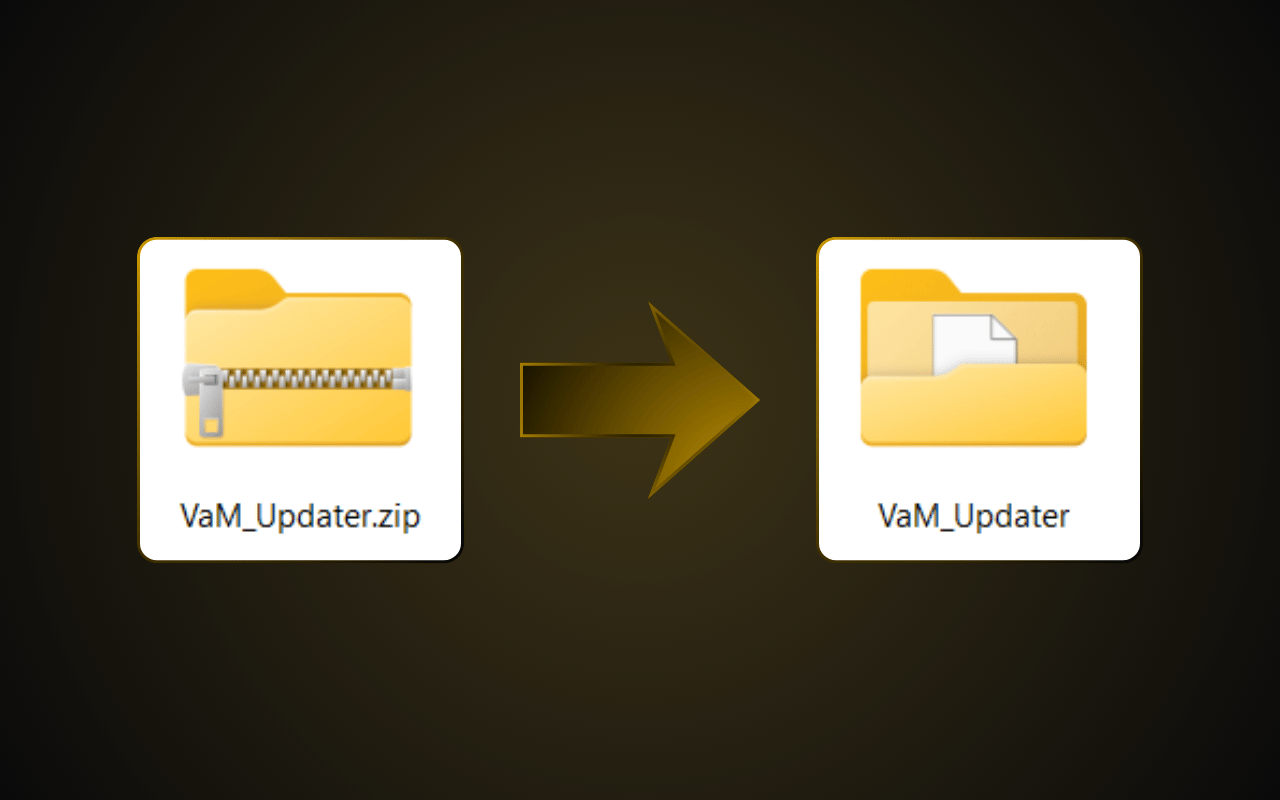
Extract VaM_Updater.zip and you'll get a folder called VaM_Updater (this folder will become the main folder for your Virt-A-Mate installation). Move it to any location you prefer. Do NOT put it in "Program Files" — that folder is admin-protected and will cause issues. Use a simple path like D:\VaM_Updater\
3
Run the Updater
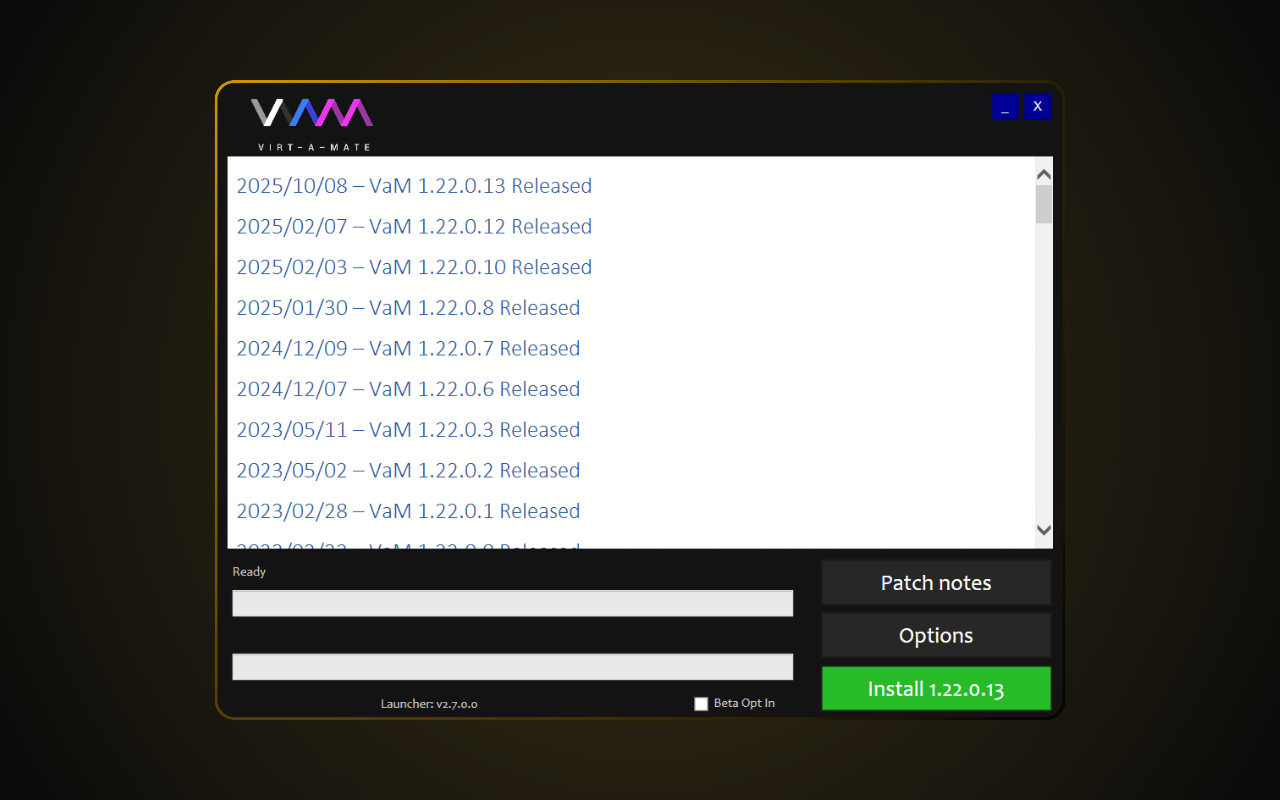
Open the folder and double-click VaM_Updater.exe. Click "Install" and wait for it to download the full program — this takes about 20–30 minutes depending on your internet speed. Windows may show a security warning — this is a false positive. Click "More info" then "Run anyway" to continue.
4
Initial Setup
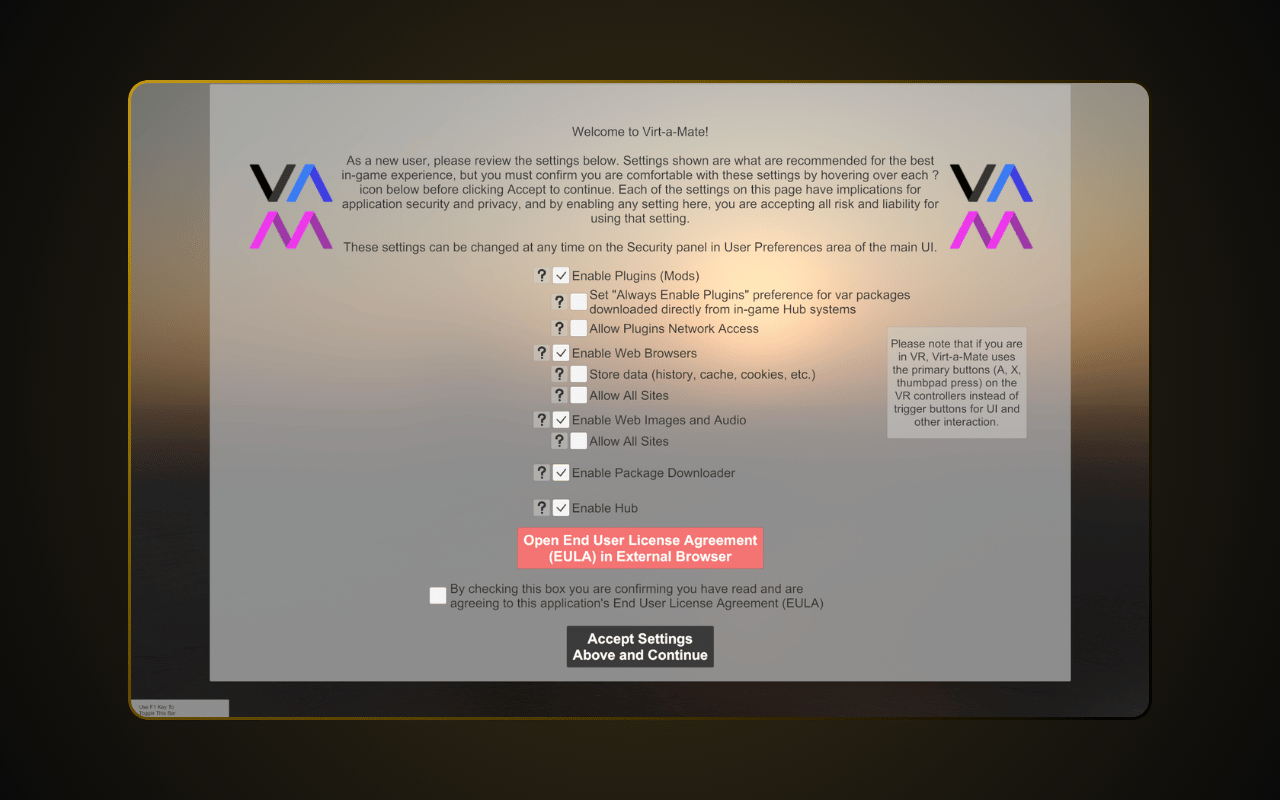
Once the Updater finishes, open VaM.exe from the same folder. On first launch, VaM will show a "Welcome to Virt-a-Mate!" settings screen. Check the EULA at the bottom, then click "Accept Settings Above and Continue". We recommend checking all the boxes — without them, some features won't work and VaM will repeatedly ask for permission. Just make sure to download content from VaM Hub or other trusted sources.
5
Launch Virt-A-Mate
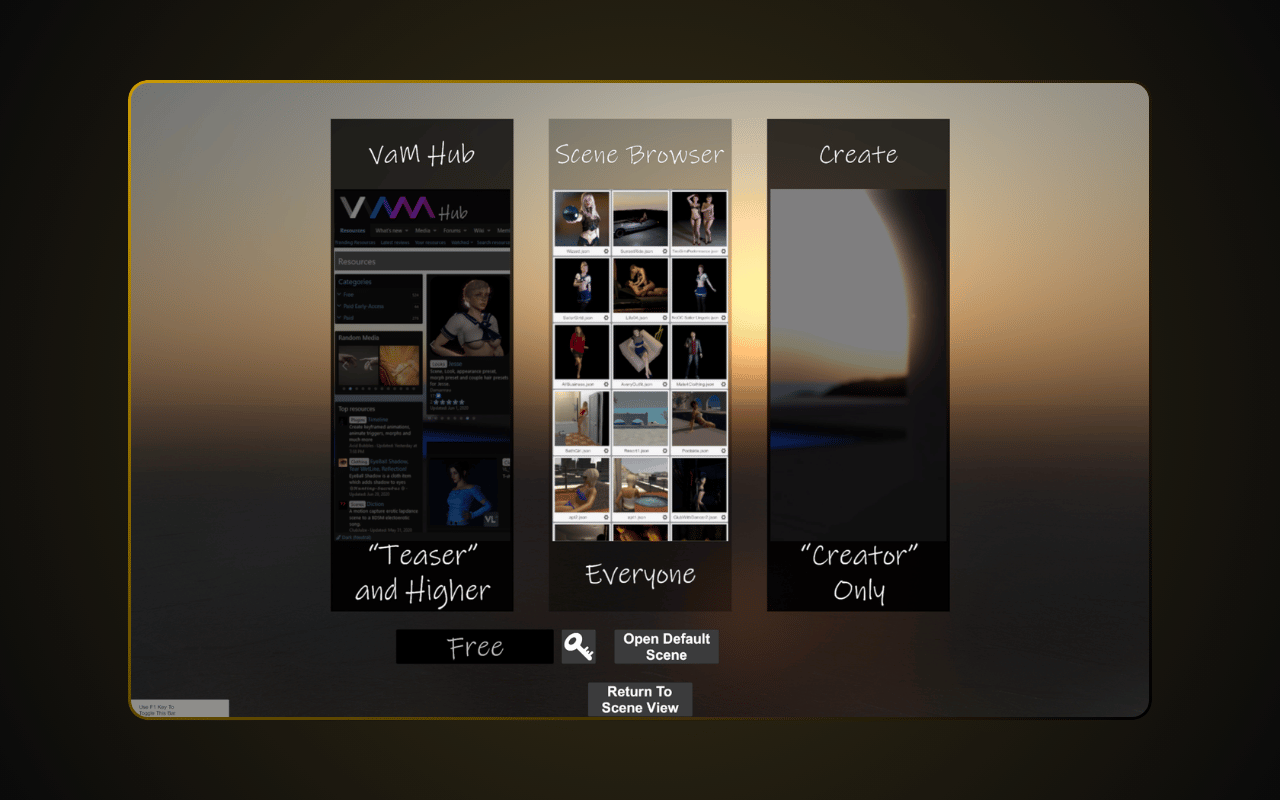
The free Demo mode works right away — no key needed. Want full features? See our guide: How to Subscribe & Unlock Demo Virt-A-Mate.