How to Use .var Files in Virt-A-Mate
Got .var files from other sources? Here's how to install and use them.
1
Get .var Files

Virt-A-Mate uses .var files as its package format. Each .var can contain scenes, looks, textures, morphs, and other assets bundled together.
2
Copy to AddonPackages
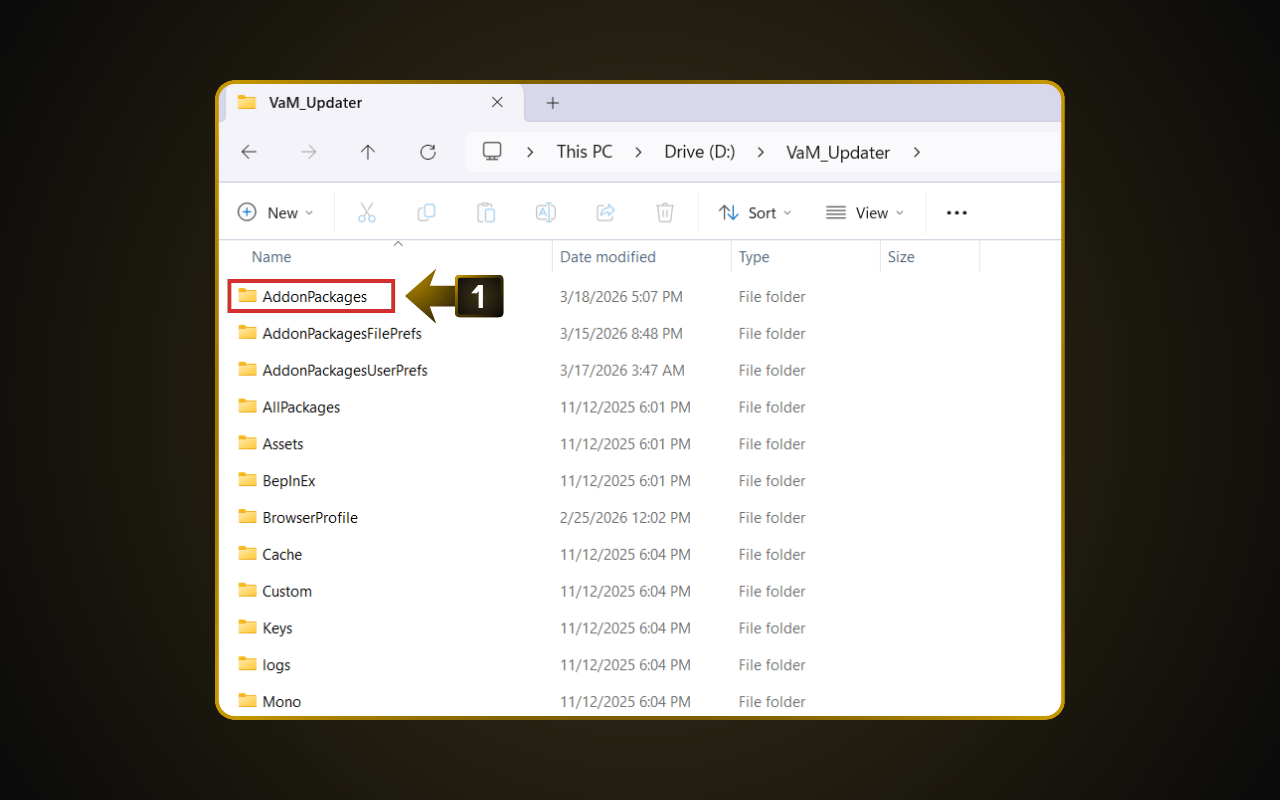
Copy the .var files into the AddonPackages folder inside your VaM installation directory.
Example: D:\VaM_Updater\AddonPackages\
Do NOT extract .var files — VaM reads them directly as packages. Just copy the .var files as-is into the folder.3
Load from Scene Browser
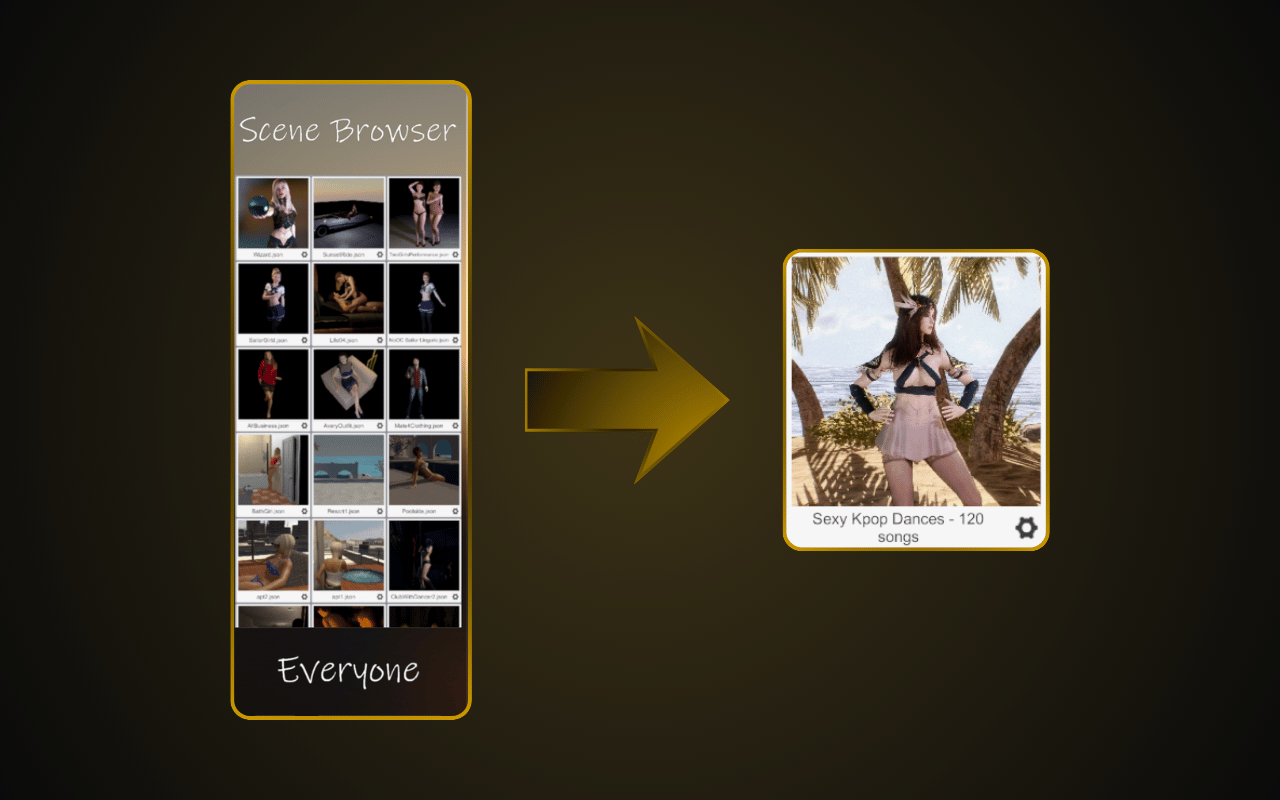
Open VaM.exe, click "Scene Browser" on the main screen, and select the scene you just installed to load it. If content shows errors, it may need dependencies — other .var packages the content relies on. See our guide: How to Fix Errors via VaM Hub in Virt-A-Mate.